Direct Debit with GoCardless
MaktabMate works with GoCardless so your maktab can collect fees by Direct Debit. Parents sign up once with their bank details on a secure GoCardless page. After that, payments are taken on time and recorded against each student's fees in MaktabMate, so you no longer have to tick off payments by hand.
Everything is done from MaktabMate: connecting your account, asking parents to sign up, taking payments, and cancelling or refunding them. The money goes from the parent's bank to your maktab's bank through GoCardless. MaktabMate never holds it.
On this page
- Before you start
- Connect GoCardless
- Verify your GoCardless account
- Set up Direct Debit for a family
- Already using GoCardless? Link your existing Direct Debits
- How payments are taken and recorded
- Failed payments, cancelled Direct Debits and bank changes
- Cancel or refund a payment
- Stop or disconnect
- For parents
- Questions
Before you start
- You need to be the maktab's headteacher or have office access to fees in MaktabMate.
- You need a GoCardless account in your maktab's name. If you do not have one, you can create one while you connect, and it is free to open.
- GoCardless charges its own fee on each payment, which comes out of the money paid to your maktab. You can see the fees on the GoCardless pricing page. MaktabMate does not add any charge on top.
- Each maktab uses one Direct Debit provider: either GoCardless or Stripe. This guide covers GoCardless.
Connect GoCardless
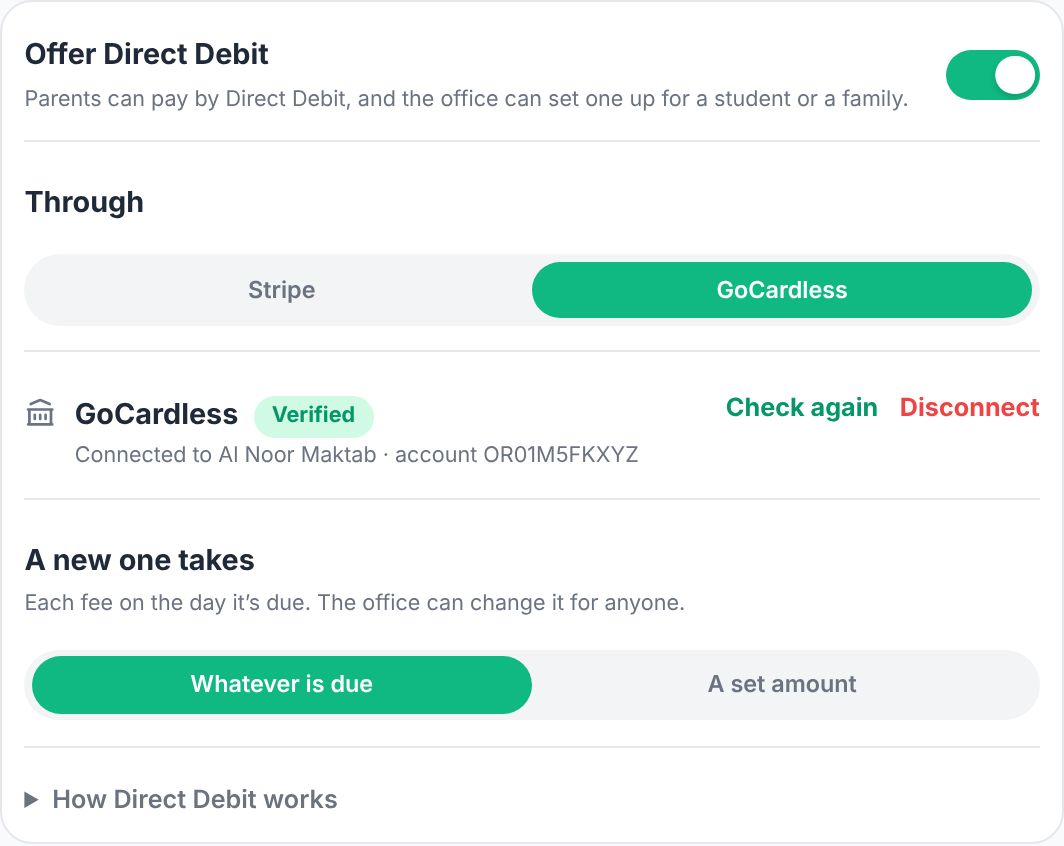
- In MaktabMate, open Fees, then Fee settings, then the Direct Debit tab.
- Turn on Offer Direct Debit.
- Under Through, choose GoCardless.
- Press Connect GoCardless if your maktab already has an account, or Create a GoCardless account if not. You are taken to GoCardless to sign in or sign up. Your maktab's name and your email are filled in for you.
- Allow MaktabMate to connect. You come back to MaktabMate and the tab shows Connected to your account name and account ID.
- Choose what a new one takes: Whatever is due (each fee on the day it is due) or A set amount (for example £30 on the 1st of each month). You can change this for any family later.
Verify your GoCardless account
GoCardless checks every new account before it pays money out. The Direct Debit tab shows where you are:
- Verified: all done. Payments are paid out to your bank.
- GoCardless needs details: press Finish verifying in GoCardless and complete the steps GoCardless asks for.
- GoCardless is checking: there is nothing to do. You can still set up Direct Debits, but payouts wait until GoCardless has finished checking.
MaktabMate checks the status again each time you open the tab. Press Check again to check straight away.
Set up Direct Debit for a family
- Open Fees and open the family, or a student if they have no brothers or sisters at the maktab.
- On the Direct Debit card, press Set up. Choose what it takes and press Set up and email the link.
- The parent is emailed. They open Fees in the MaktabMate app, tap Set up Direct Debit and enter their bank details on GoCardless's secure page. One Direct Debit covers all their children at the maktab.
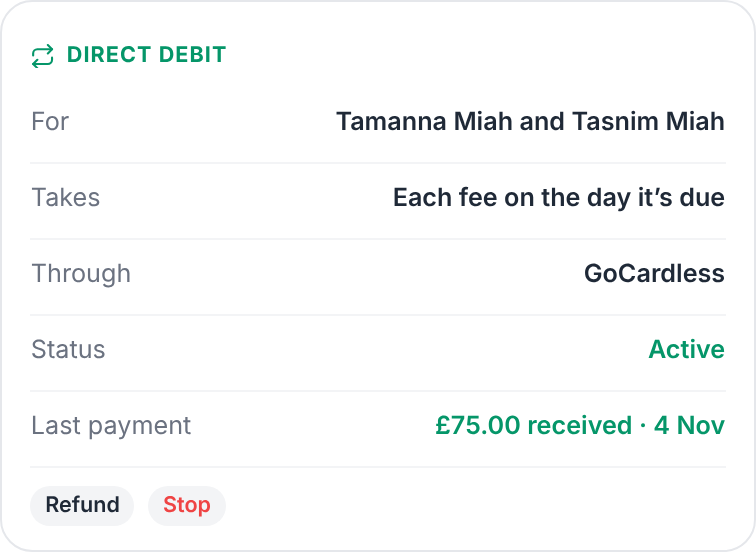
- The card shows Waiting for the parent to sign up, then Signed up · the bank is confirming it (about 3 working days), then Active.
Parents can also start it themselves from Fees in the app, once you have turned on Direct Debit. If a parent has not signed up yet, press Email the link again on the card to remind them, or Share link to send it by WhatsApp or text.
Already using GoCardless? Link your existing Direct Debits
If parents already pay your maktab by Direct Debit through GoCardless, you do not need to ask them to sign up again. Link each Direct Debit to the right family and MaktabMate starts recording its payments.
Match them all at once
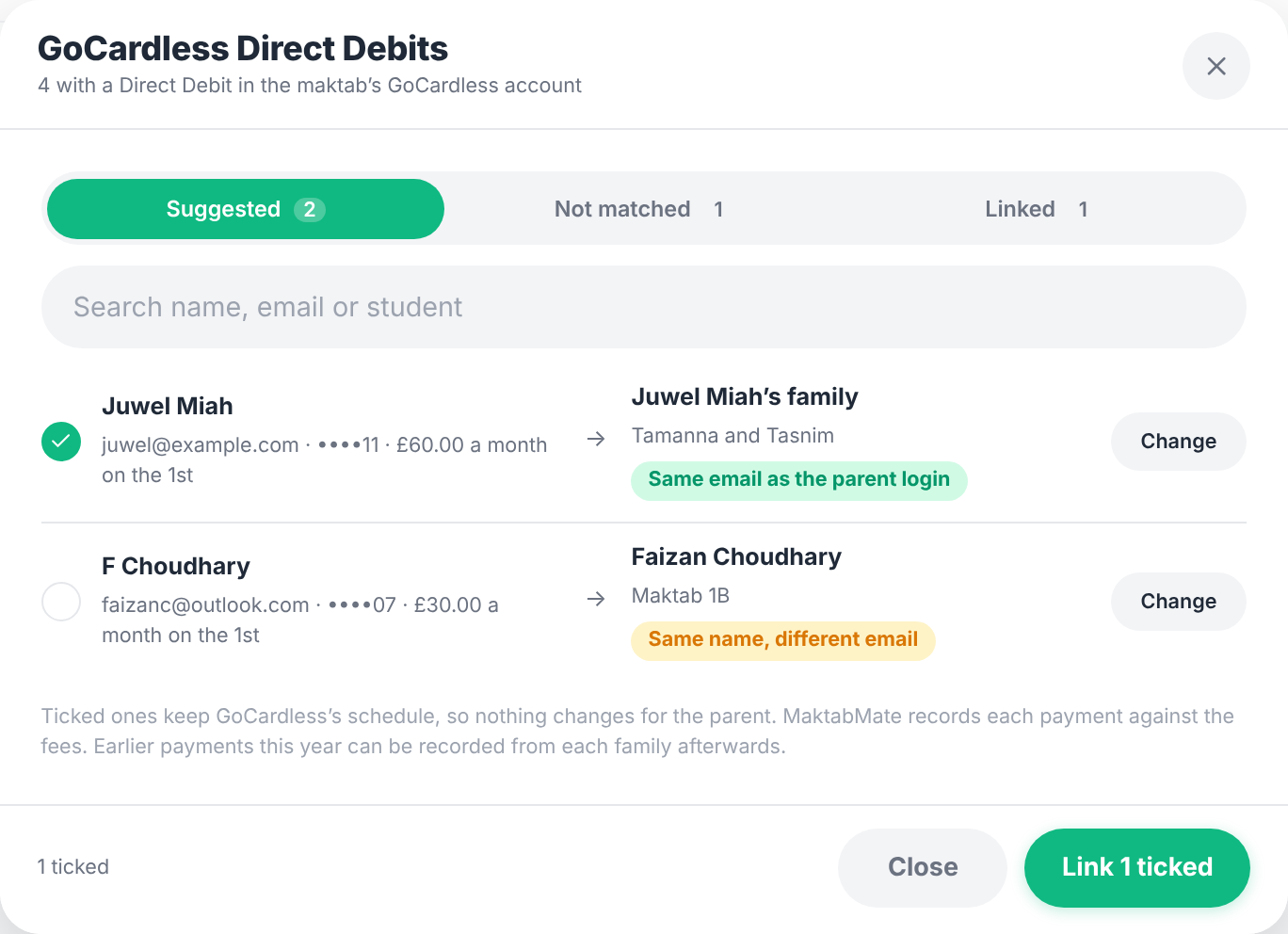
- Open Fees, then the Direct Debit tab, and press Match existing Direct Debits.
- MaktabMate lists every customer with a Direct Debit in your GoCardless account, in three tabs:
- Suggested: matched to a family by the same email as the parent's MaktabMate login, or by the same name. Matches by email are ticked for you. Check the ones matched by name before ticking them.
- Not matched: choose the student or family yourself, then press Link.
- Linked: already linked. Press Unlink if one is wrong.
- Press Link N ticked.
Link one family, and record earlier payments
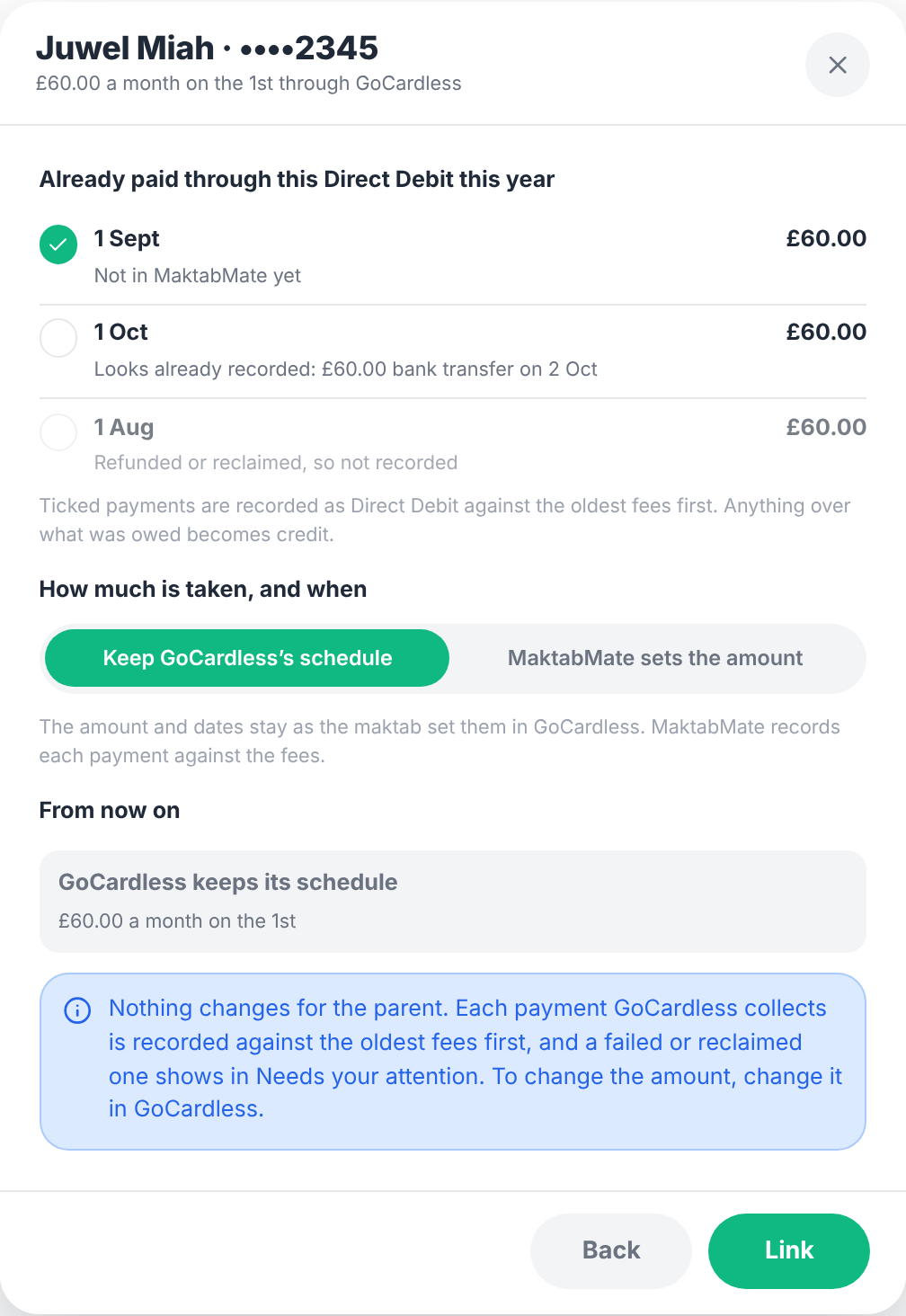
On a family's Direct Debit card, press Link an existing Direct Debit and search for the parent. You can tick payments already taken this year so they are recorded against the fees. Payments MaktabMate already has, or that were refunded, cannot be ticked.
Then choose how much is taken, and when:
- Keep GoCardless's schedule: nothing changes for the parent. The amount and dates stay as you set them in GoCardless, and MaktabMate records each payment. To change the amount later, change it in GoCardless.
- MaktabMate sets the amount: the GoCardless subscription is cancelled and MaktabMate takes the fees through the same Direct Debit, either each fee when it is due or a set amount. The parent does not sign up again, and is emailed to say what will now be taken.
How payments are taken and recorded
- When MaktabMate sets the amount, it asks GoCardless for each payment on the day it is due. The money normally leaves the parent's bank a few working days later.
- GoCardless emails the parent before every payment, as Direct Debit rules require.
- When a payment clears, it is recorded against the oldest fees first. Anything over what was owed becomes credit for the next fee. The parent gets a receipt.
- The family's card shows the last payment (on its way, received, failed, cancelled or refunded) and the payments coming up.
- Every change is listed in Activity on the Fees page.
Failed payments, cancelled Direct Debits and bank changes
- A payment fails (for example, not enough money in the account): the fees stay owed, the card shows why it failed, and the office is emailed. Press Try again to ask for it again.
- A payment is reclaimed by the parent's bank after it was paid: the fees it paid become owed again and it is shown in Activity.
- A Direct Debit is cancelled, fails or expires (for example, the parent cancels it at their bank): the card shows Cancelled by the bank and the office is emailed. Speak to the parent, then press Email the link again so they can set it up again.
- A parent moves to a new bank account through the bank's switching service: GoCardless moves the Direct Debit across, and the card shows the new account's last digits. You do not need to do anything.
Cancel or refund a payment
Cancel a payment before it is taken
While a payment shows on its way, press Cancel this payment on the card. Nothing is taken and the fees stay owed. This only works until GoCardless sends the payment to the bank, usually the working day before it is taken.
Refund a payment
Once a payment has been received, press Refund on the card and choose all of it or part of it. The money goes back to the parent's bank in about 3 working days, the parent is emailed, and the fees it paid are owed again unless you change or waive them.
Turning on refunds: GoCardless keeps refunds off on new accounts. The first time you try to refund, MaktabMate shows a button to email GoCardless support and ask them to turn refunds on for your account. You only need to do this once.
A refund you make in your GoCardless dashboard is recorded in MaktabMate too.
Stop or disconnect
- Stop one Direct Debit: press Stop on the family's card. Nothing more is taken through it. A Direct Debit linked with Keep GoCardless's schedule is only unlinked: GoCardless keeps collecting until you cancel it in GoCardless.
- Disconnect GoCardless: in Fee settings, Direct Debit tab, press Disconnect. MaktabMate stops recording GoCardless payments and its Direct Debits stop. GoCardless keeps collecting any subscriptions you set up there until you cancel them in GoCardless. You can also disconnect MaktabMate from your GoCardless dashboard, and MaktabMate notices straight away.
For parents
- Your maktab asks you to set up Direct Debit, or you can start it from Fees in the MaktabMate app by tapping Set up Direct Debit.
- You enter your bank details on GoCardless's secure page. MaktabMate never sees your full bank details.
- GoCardless emails you before each payment. You are protected by the Direct Debit Guarantee.
- To stop it, ask your maktab, or cancel it at your bank.
Questions
Can we use GoCardless and Stripe at the same time?
No. Each maktab chooses one provider for Direct Debit, so parents and the office only ever see one way to set it up.
Does MaktabMate take a share of payments?
No. Only GoCardless's own fees come off each payment.
Who do I contact for help?
For anything about MaktabMate, email info@maktabmate.co.uk with your maktab's name. For your GoCardless account, payouts or verification, contact GoCardless support.